Allocate a static IP address to the VMware vCenter Server Appliance (VCSA)
How to configure static IP address on VCSA when DHCP is not available.
When deploying the VMware vCenter Server Appliance (VCSA) it will default look for a DHCP address. When there is no DHCP server available the following error is displayed:
O NETWORKING DETECTED.

it is possible to manually configure a static IP address by using the command line. Here are the steps:
- Open a console session of the VCSA
- Login as: root
- Default password is: VMware
- Execute the following command:
/opt/vmware/share/vami/vami_config_net
- After executing the command, a menu is displayed. Within the menu It is possible to change the IP address, hostname, DNS, Default gateway and proxy server.
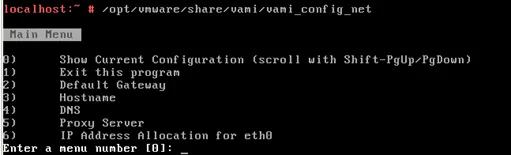
- After allocate a static IP Address to the VCSA the post configuration can be done by using the following URL:
https://static-ip-address:5480