Configure the VMware Horizon View Event database with MS SQL Server Express
Step-by-step guide to set up View event logging with SQL Server Express database.
The event database record information about View Manager events. Without configure the event database events are logged in a log file. The log file has very limited information. So configuring the Event Database in the View environment is a best practice.
In Proof of Concept (PoC) environments MS SQL Server Express can be used for the Event database. This procedure describes how-to create a event database by using an MS SQL Server Express database:
- Install the Microsoft SQL Server Management Studio. For more information see my earlier blog post link
- Make sure the SQL server authentication is set to SQL and Windows Authentication mode
- Create a new database in Microsoft SQL Server Management Studio (There is no ODBC data source connection needed!).
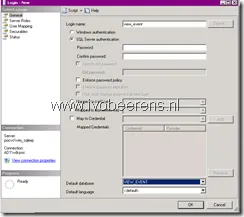
- Create a new user using SQL Server authentication, disable enforce password policy and select as default database the event database.
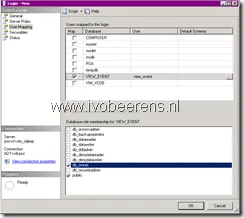
- In the User Mapping field, map de the database and add the role db_owner to the new user
 |  |
|---|
- Open the SQL Server Configuration Manager > SQL Server Network Configuration > Protocols for VIM_SQLEXP, open the TCP/IP protocol and make sure it is enabled. Scroll down to IPAll and write down the TCP Dynamic Ports number
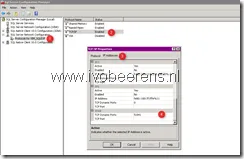
- Disable Windows Firewall on the SQL server machine. If you are unable to do this, set a Firewall exception for the dynamic port listed
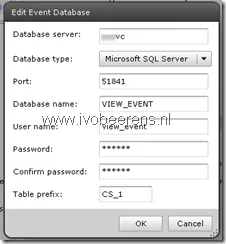
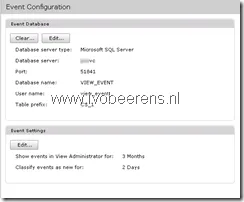
- In the View Administrator (https://connectionserver/admin) select View Configuration > Event Configuration. In the Event Database section click Edit and enter the information needed.
 |  |
|---|
And the Event database is configured with MS SQL Server Express.